September 25–26 · New York City
Reserve your sessions.
Then put them
on your home screen
The breakout sessions are reserved, not first come. You book your own seat in the app, and that is what keeps each room small enough to be worth sitting in. Your ticket, the programme and every change to it come with it, working without signal. It takes about twenty seconds, and on an iPhone it is the only way we can reach you.
Open the portal →then follow the steps below
A seat in a breakout is yours before you get there
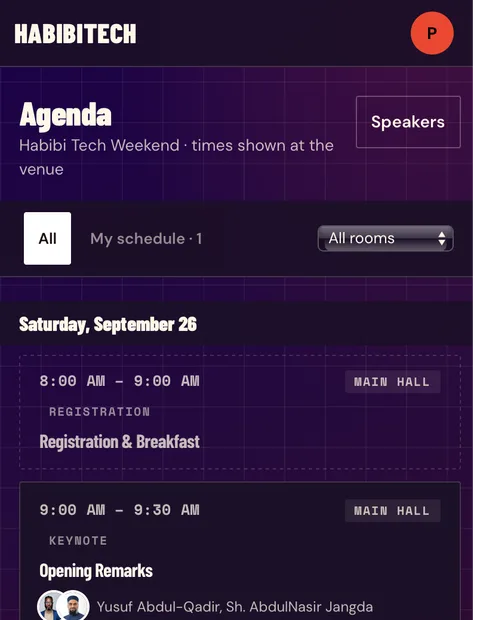
The programme is published and reservations are open now. Every session you book shows up on your own agenda in the app, with a reminder ten minutes before it starts and the room it is in. Rooms do move on the day, and the app is where you will hear about it.
Breakouts are reserved. The keynotes are not.
Everything on the main stage has room for everyone who came, so there is nothing to book. The breakout rooms are much smaller and the space in them is limited, so you book your seat in the app before the day.
It keeps the rooms small on purpose
When everyone in a breakout has booked to be there, it stays small enough to ask a question and to talk to the speaker afterwards. Without it you get a packed room, people standing at the back, and no real chance to join in.
From the moment you have a ticket, right up to the day
There is no deadline, so book as soon as you have your ticket. You can change your mind the night before, and if you cannot make one, cancel it and somebody else gets the seat. The popular sessions do fill up, so it is worth booking those early.
Your QR works with no signal
Six hundred people on one venue wifi is a network that cannot be relied on at a door. The installed app keeps your ticket on the device, so the code opens whether or not anything is reachable.
Room changes reach you
A session moves, a door opens early, the prayer space changes. On iPhone those alerts can ONLY be delivered to an app on the home screen — a browser tab cannot receive them at all.
One tap, already signed in
No address to type and no login to repeat on the morning. It opens on the day-of screen: what is on now, where, and the seats you reserved.
iPhone
Safari or ChromeOpen the portal on your phone
Safari or Chrome — either works. Since iOS 16.4 both can do this, and the app ends up identical whichever one you start in.
Tap the Share button
The square with an arrow coming out of it. In Safari it is in the bar along the bottom; in Chrome it sits beside the address bar at the top.
Choose "Add to Home Screen"
Scroll the list down — it sits below the row of apps. Then tap Add in the top corner.
Open it from the icon, and sign in there
The app keeps its own login, separate from your browser — so it will ask once, even if you were already signed in. Notifications only reach the icon, so use it from now on.
Android
ChromeOpen the portal in Chrome
Chrome is the straightforward path. Most other Android browsers can do this too, under a similarly named menu item.
Tap the ⋮ menu
Top right, beside the address bar.
Choose "Install app"
Some versions of Chrome call it "Add to Home screen" instead. Either one is the right thing to tap.
Open it from the icon
Chrome may also offer this to you on its own as a banner at the bottom of the page. Accepting that does the same job.
Four things, on the day
·Your sessions — reserve a seat in any breakout, see the ones you hold on your own agenda, and free one up the moment you know you cannot make it.
·Your ticket — the QR for every door you hold, saved on the device.
·Who is coming — the attendee list, the speakers, and everyone on the bazaar floor with their stand number.
·Chat and announcements — a room per session, and the record of everything the organisers said.
Do I need to reserve the keynotes?
No. Anything on the main stage seats everyone who came, so just turn up. Reservations are for the breakout rooms, which are the ones that fill.
I have a ticket but the sessions won’t let me book
Sign in with the address the ticket is in, which is not necessarily the one that paid for it. A ticket bought for you by someone else is held under your address, so that is the one the app is looking for.
Can I hold two sessions at the same time?
No. The app stops you rather than let you double book, because a seat you cannot use is one somebody else could have had. Cancel the first and it goes straight back.
I don’t see “Add to Home Screen”
Scroll the share sheet down — it sits under the row of apps and is easy to miss. If it is genuinely not there, you are on an iPhone older than iOS 16.4 in a browser other than Safari; Safari can do it on any version.
It never asked about notifications
Open the app from the home-screen icon rather than from a browser tab, and the prompt is on the first screen. iOS will not ask inside a tab, because it cannot deliver there.
I’m on a laptop
Nothing to install — portal.habibi.tech works as an ordinary site. Do the phone as well, though: the QR at the door is a phone job.